Competence
Computational Design — Archive of Practice
- 01Input04
Bringing external information, references, and site data into the modelling environment.
- 01.01How to set up files for a smooth workflow?
Setting up units, origin, interface, navigation, and viewport display correctly before you start is the foundation for modelling efficiency.
- Workspace
- Cartesian coordinate system
- Absolute tolerance
- 01.02[Placeholder] Input question two?
[Placeholder summary] Short one-line preview text for the index hover state.
- [Placeholder concept]
- [Placeholder logic]
- [Placeholder tool]
- 01.03[Placeholder] Input question three?
[Placeholder summary] Short one-line preview text for the index hover state.
- [Placeholder concept]
- [Placeholder logic]
- [Placeholder tool]
- 01.04Placeholder 04Upcoming
Archived — content in progress. Not yet available.
- 02Geometry04
- 03Optimization03
- 04Output04
How to set up files for a smooth workflow?
Description
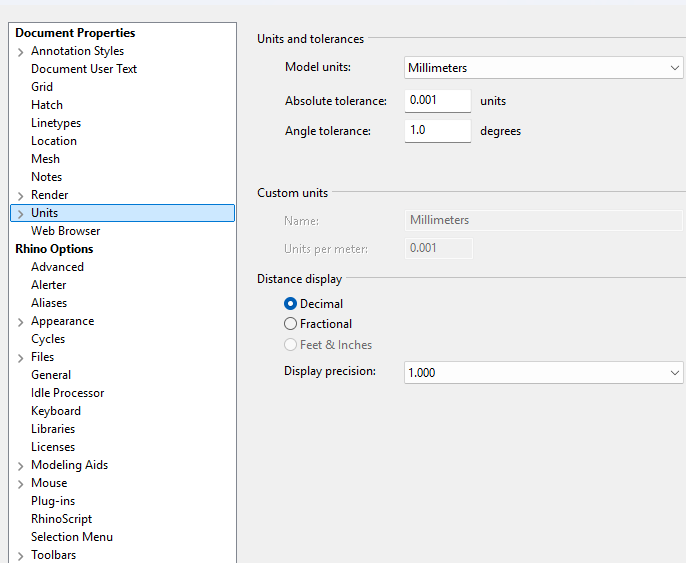
Setting up your digital workspace correctly before you start is the foundation for modelling efficiency and preventing future disasters. A well-prepared digital environment relies on five core aspects:
- Defining the correct Units and Tolerances.
- Anchoring to the spatial Origin (0,0,0).
- Understand your User Interface.
- Mastering basic Navigation and Transformation.
- Understanding different Viewport Display Options.
This conceptual framework applies to almost any 3D spatial design software you will use.
Tips
- Units & Tolerance — The digital world has no physical scale (a 1cm cube and a 1m cube look identical on screen). Setting the correct
Units(like mm or m) is crucial for printing or fabricating models accurately. More importantly, computers have calculation limits. If you try to model an entire city in millimetres, the huge numbers will overload the software. This directly causesbroken surfaces, failedboolean operations, andsnapping errors. - The Origin (0,0,0) — The
Origin (0,0,0)is the absolute center of your digital space. Always build your models as close to this point as possible. If you place your design thousands of kilometers away from the origin, the computer will struggle to calculate the coordinates. This causes annoying glitches: your camera might get stuck while zooming, parts of your model might randomly disappear (Geometry Clipping), and lines won’t intersect properly. - User Interface — Every software divides your screen into specific zones (like
Toolbars,Command Lines, andProperty Panels). When opening a new program, first figure out what each zone does. Then, customise theInterfaceto fit your workflow so your most-used tools are always within reach. - Navigation vs. Transformation — To work efficiently, you must master the difference between moving your view and moving the object.
Navigationrefers to changing your camera viewpoint within the digital world, using commands likePan,Zoom, andOrbit. In contrast,Transformationinvolves manipulating the actual 3D geometry using tools such asMove,Copy,Rotate, andScale. - Viewport Display Options — 3D models are just raw digital data, so the software can display them in different visual styles. Learn when to use each
Viewport Displaymode. For example, useWireframefor fast and precise drafting, and switch toShadedorGhostedwhen you need to check 3D volumes.
Keywords
[C] concept
- Workspace
- Cartesian coordinate system
- Absolute tolerance
[L] logic
- Floating-point precision (why models lag far from the origin)
- Vector transformation (move / rotate / scale)
- Viewport rendering
[T] tool
- Units setup
- Origin point (0,0,0)
- Rhino interface
- Navigation
- Display modes